Multi-Provider Git Sync
Connect your Git host or self-hosted server — each profile uses its own provider and URL. Full provider list
v3.0.4 — Multi-provider Git sync, Bitwarden backup to Git, profile transfer, push mirrors, live sync progress, and nested-card UI. Release notes
Pre-releases — try betas and help shape the next version. Extension · App
Or download the ZIP from Releases and load unpacked:
Chrome: chrome://extensions/ · Firefox: about:debugging
"With a distributed tool, no single place is vital to your data."
— Linus Torvalds (Git creator)
Connect your Git host or self-hosted server — each profile uses its own provider and URL. Full provider list
Copy bookmarks between profiles (replace or merge). Optional push-only backup remotes after each successful sync.
Store password-protected vault exports in your repo with optional extra encryption. List, download, or delete remote backups.
Step text during push, pull, and profile switch — e.g. 3 / 12 files or 1 of 3 steps in popup and settings.
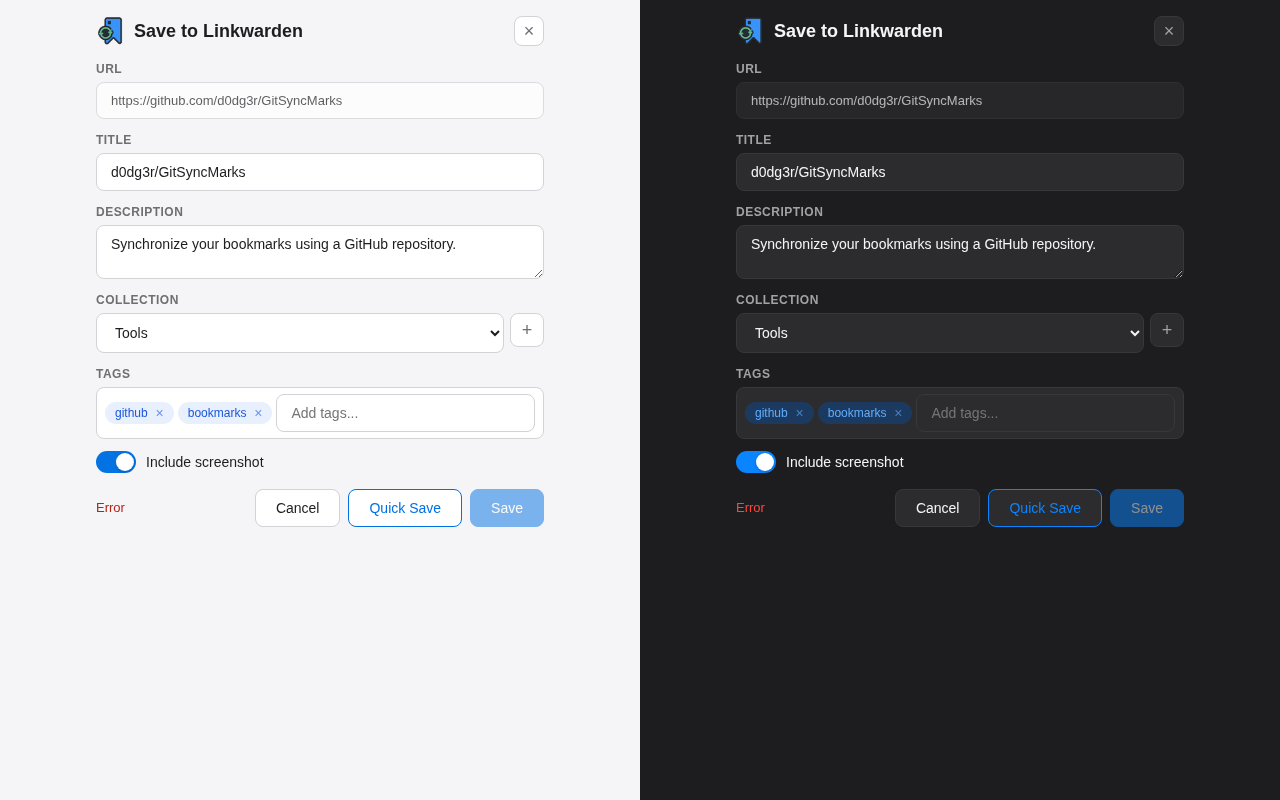
Save any page or link directly to Linkwarden with automatic viewport screenshots, collection sync, and tag management.
Dedicated lightning-fast search interface with theme support and full keyboard navigation. Find any bookmark in milliseconds.
Browse past commits, preview changes with a diff view, and restore any previous bookmark state in one click.
Automatic conflict-free sync when changes happen on both sides simultaneously. No manual merge needed in most cases.
Preview and delete remote bookmark files that no longer exist locally — keep your repository tidy.
Direct communication with your Git provider's API. No third-party servers, no analytics. Your data stays in your repository.
Each bookmark is a readable JSON file in your Git repo — diff-friendly, versioned, and easy to edit manually.
Up to 10 profiles (work, personal, projects). Each has its own provider, repository, and bookmark set.
Add bookmark JSON via git or the included GitHub Action template; the extension imports them on the next sync.
Quick folders, Search Bookmarks popup, Open All from Folder, Save to Linkwarden, favicon copy/download, and profile actions.
Setup wizard: After installation, the wizard guides you through provider, token, and repository setup. Connection check only validates access — you choose pull, merge, push, folder setup, or skip before anything is written.
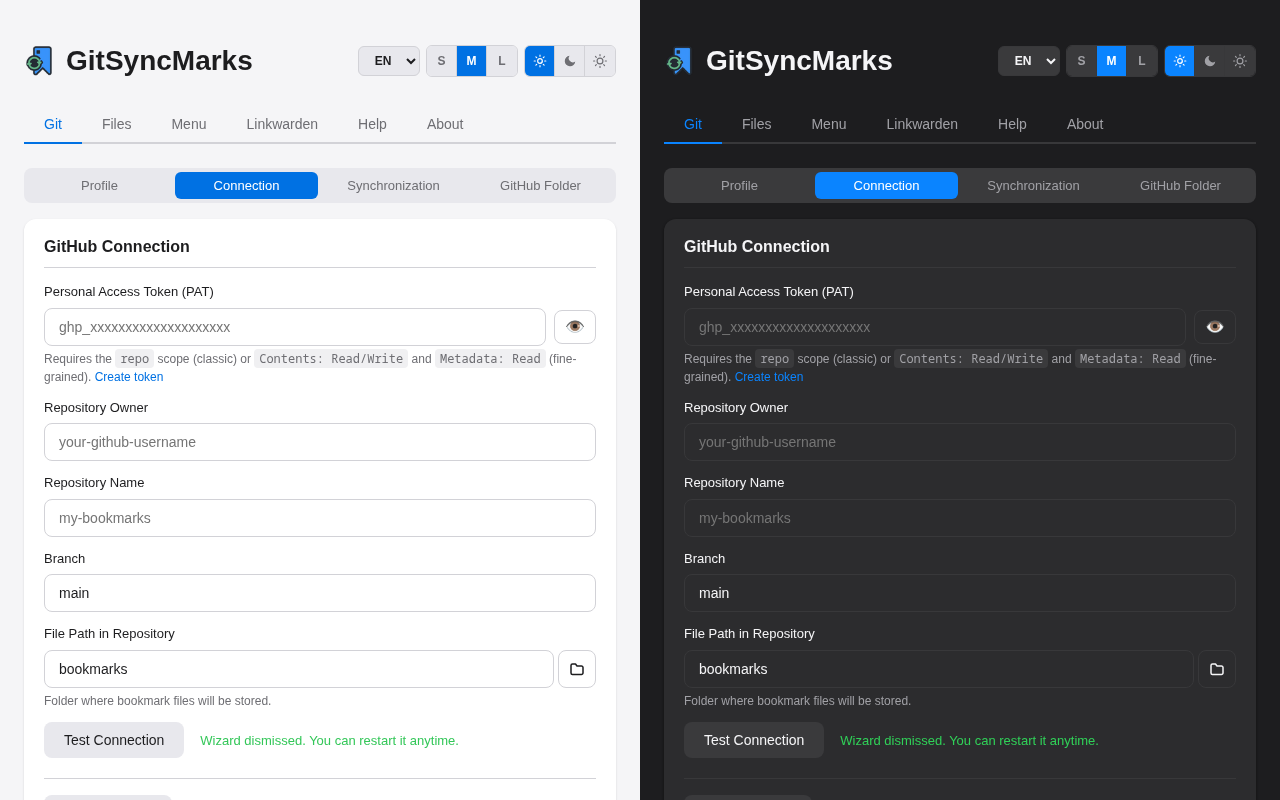
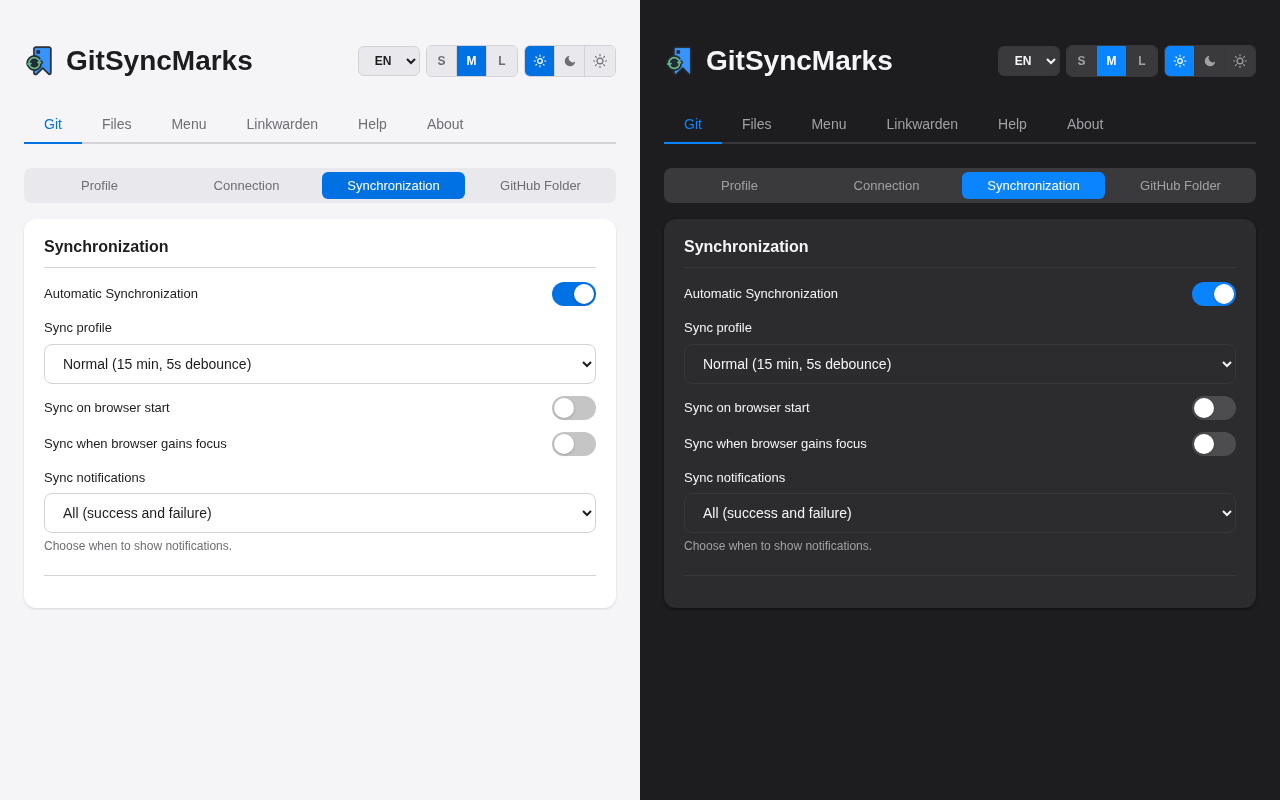
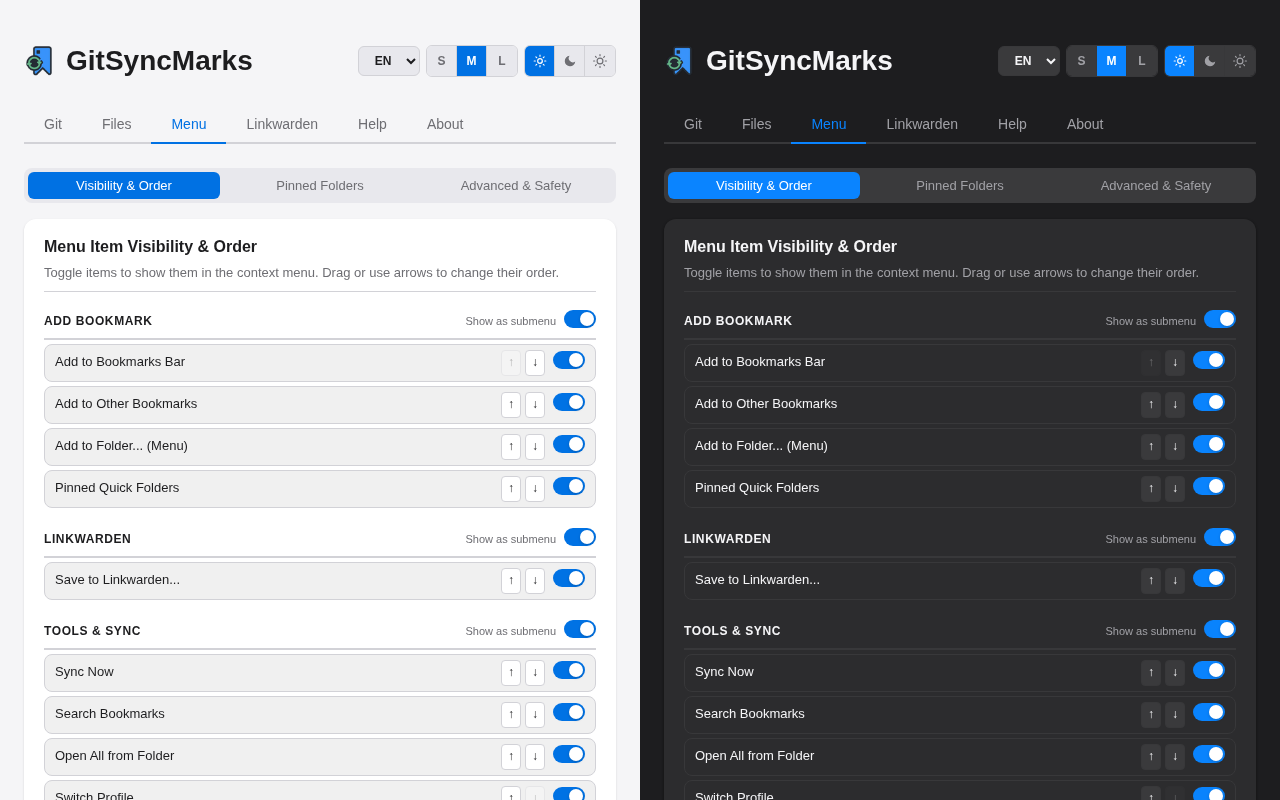
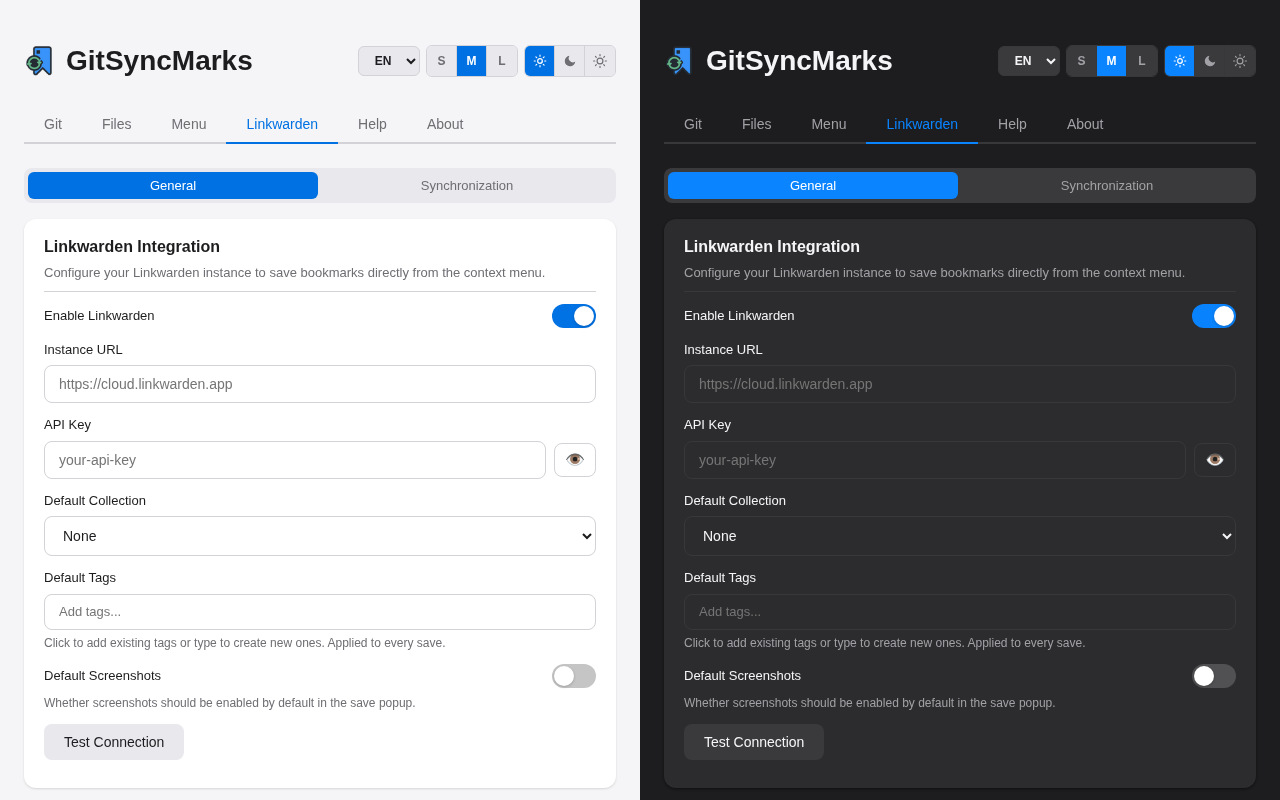
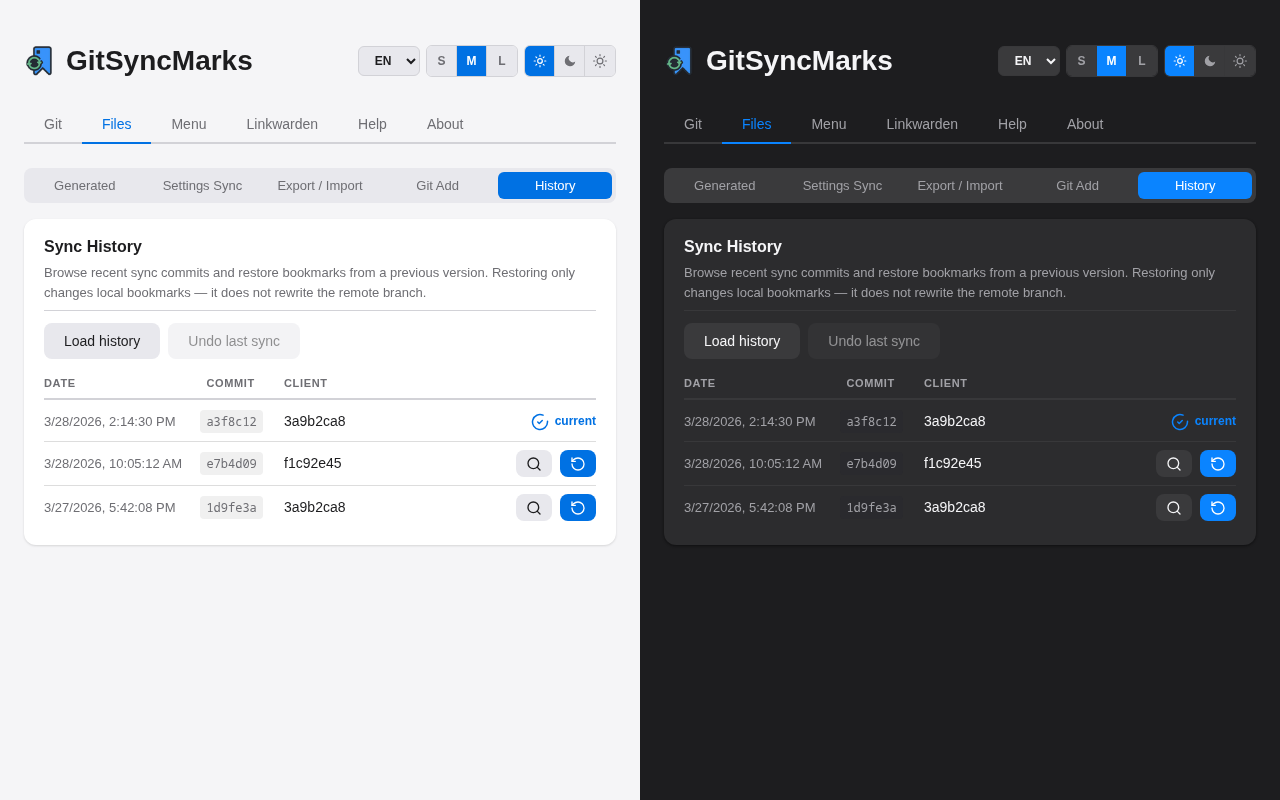
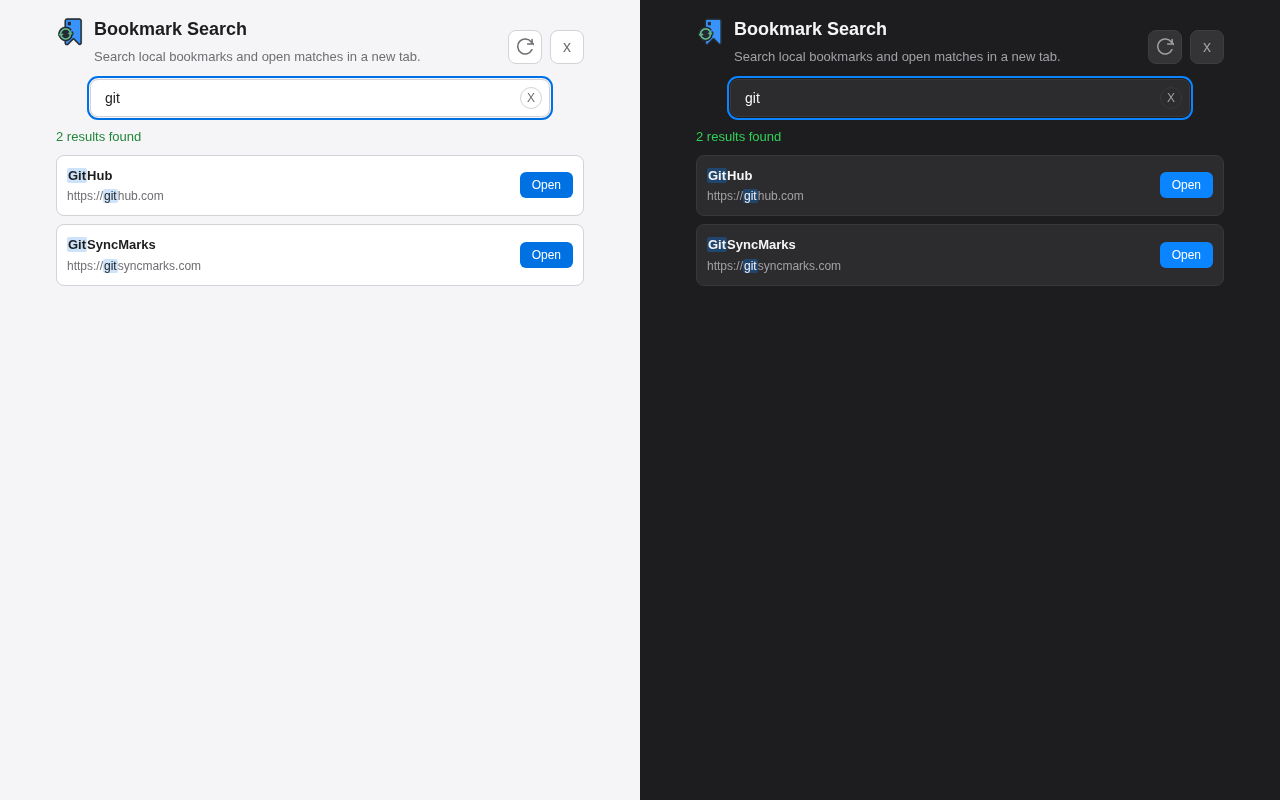
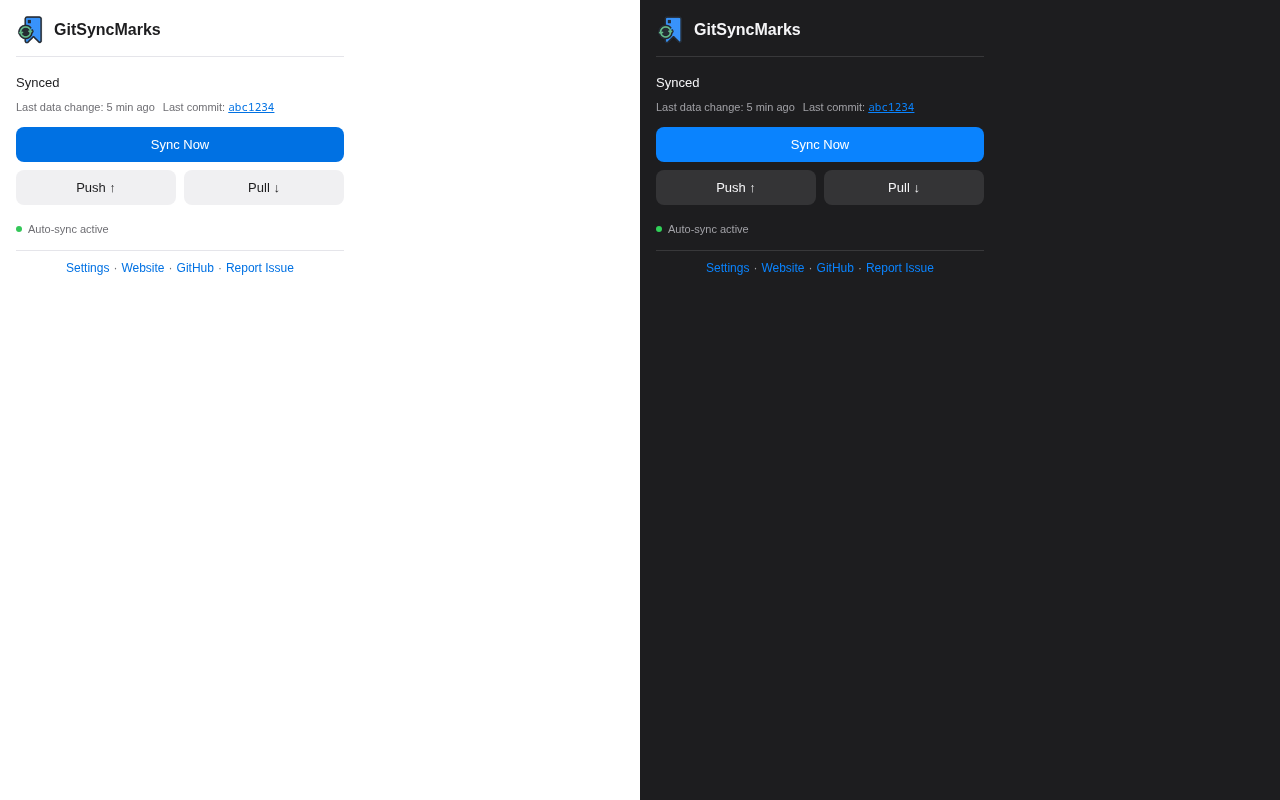
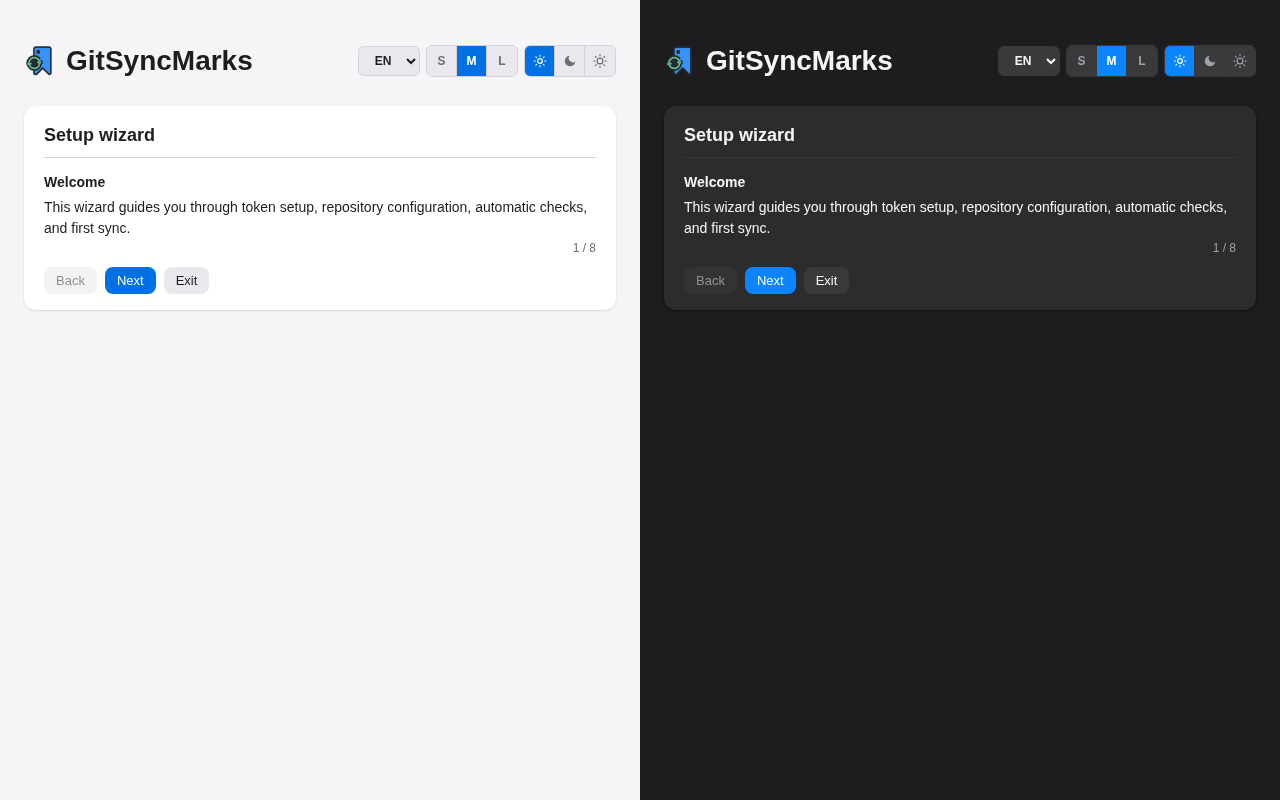
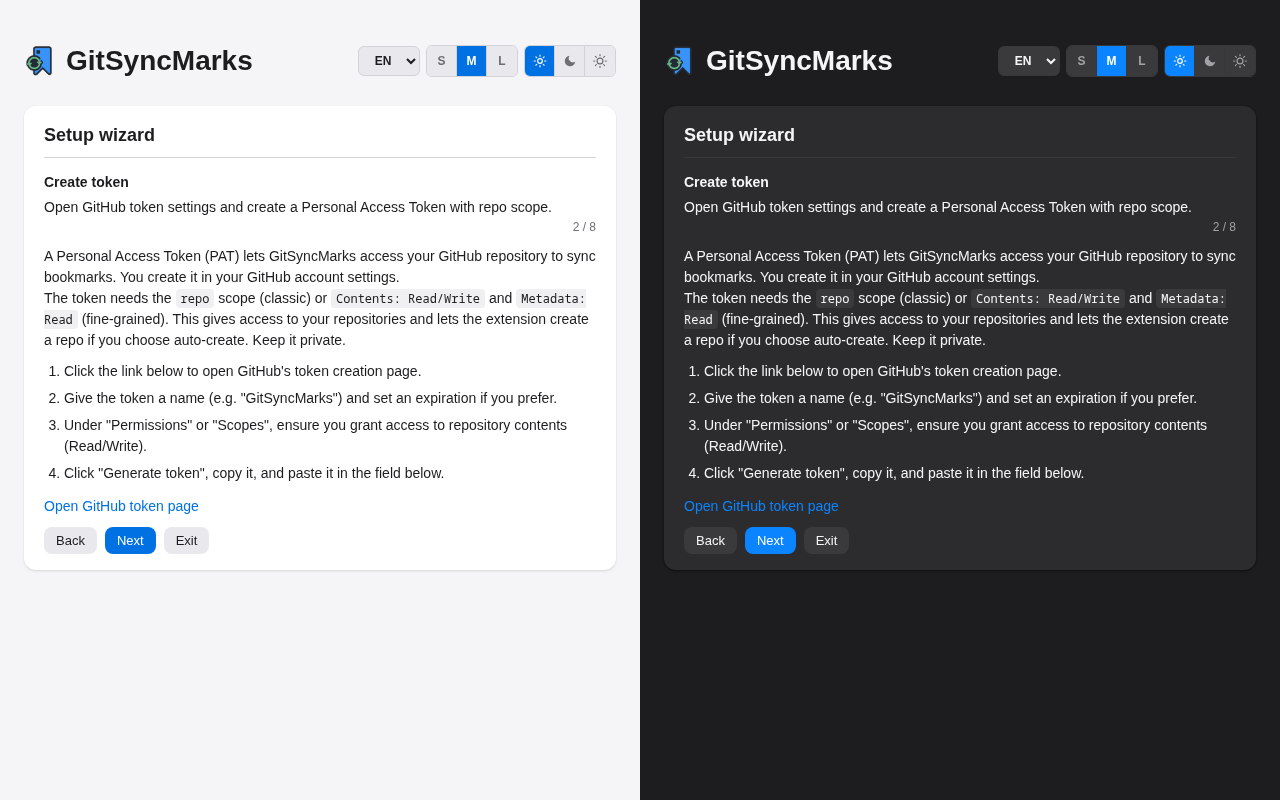
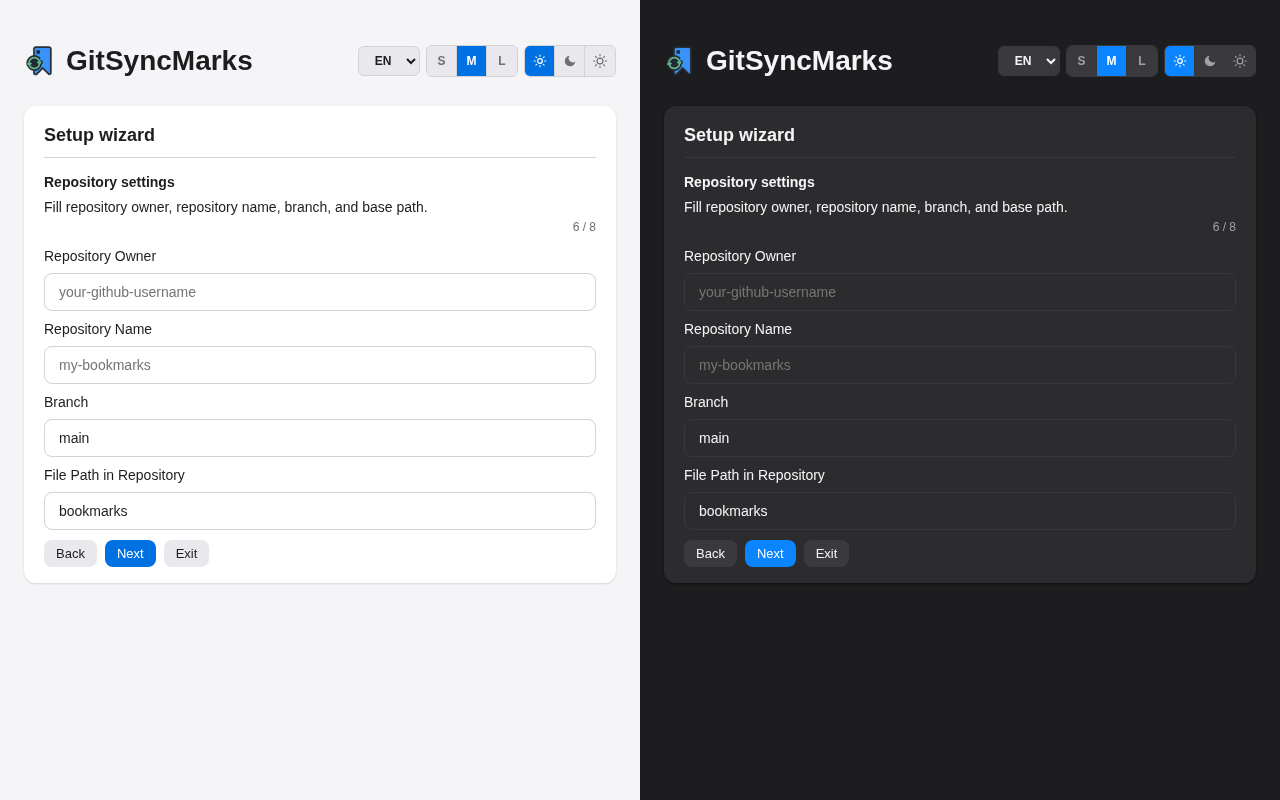
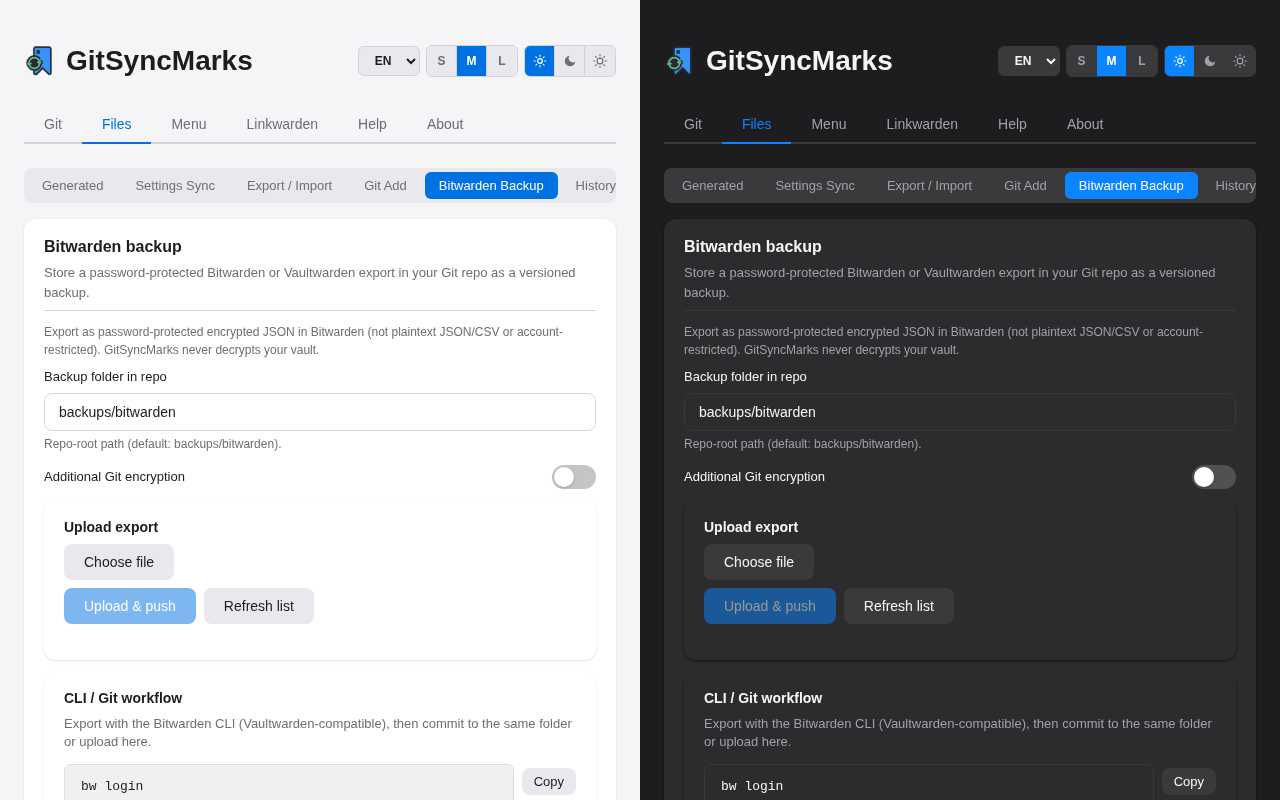
Prefer a guided setup? The built-in setup wizard opens on first install and walks you through provider selection, token creation, repo setup (auto-create or existing), and your first sync action. Restart it anytime from Settings → Help → Start setup wizard.
bookmarks)


Or download APK, Flatpak, or ZIP from Releases.
GitHub, GitLab, Gitea-family hosts — same on-disk bookmark format as the extension; three-way merge, conflict resolution (force push / pull), and sync history (preview, restore, undo)
Encrypted sync (extension-compatible), individual mode with client-name based `profiles/<alias>/settings.enc`, import from other device
Long-press to move bookmarks to any folder (including subfolders)
Drag-and-drop to reorder; changes persisted to repo
Long-press to delete (available even when edit mode is locked)
(Android/iOS): Add shared URLs from browser or other apps as bookmarks; FAB / dialog to add bookmarks and create folders on all platforms
Long-press → edit title and URL (atomic commit to repo)
Optional README.md, Netscape HTML, RSS, Dashy YAML (Off / Manual / Auto) committed with “Generate now”
(optional): Virtual tabs from your GitHub account or Linkwarden collections (profile toggles in Sync settings)
JSON plus HTML, RSS, Dashy YAML, Markdown from the current tree (Settings → Files)
S/M/L list density, sync on resume, What’s New after updates, debug log (About)
Export settings with AES-256-GCM encryption; import detects encrypted files and prompts for password
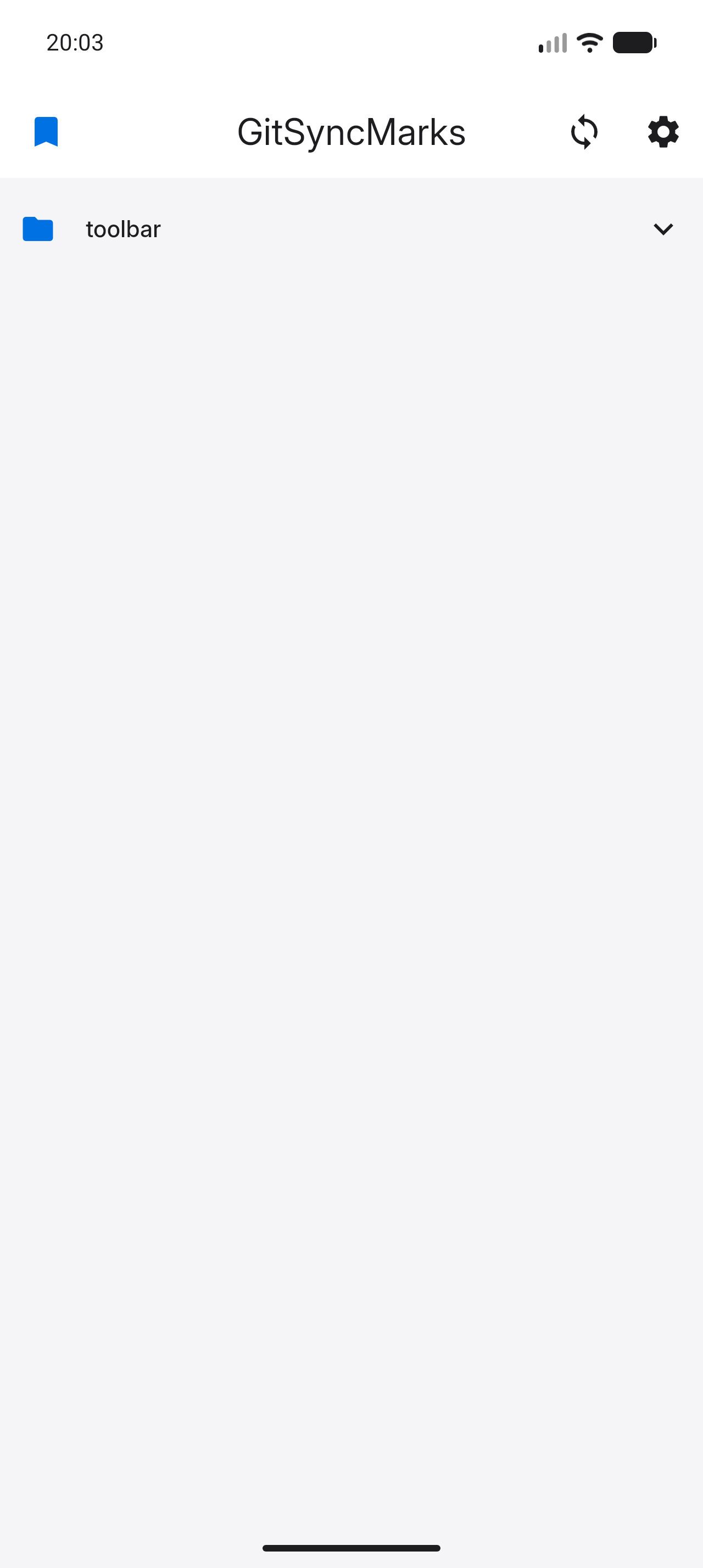
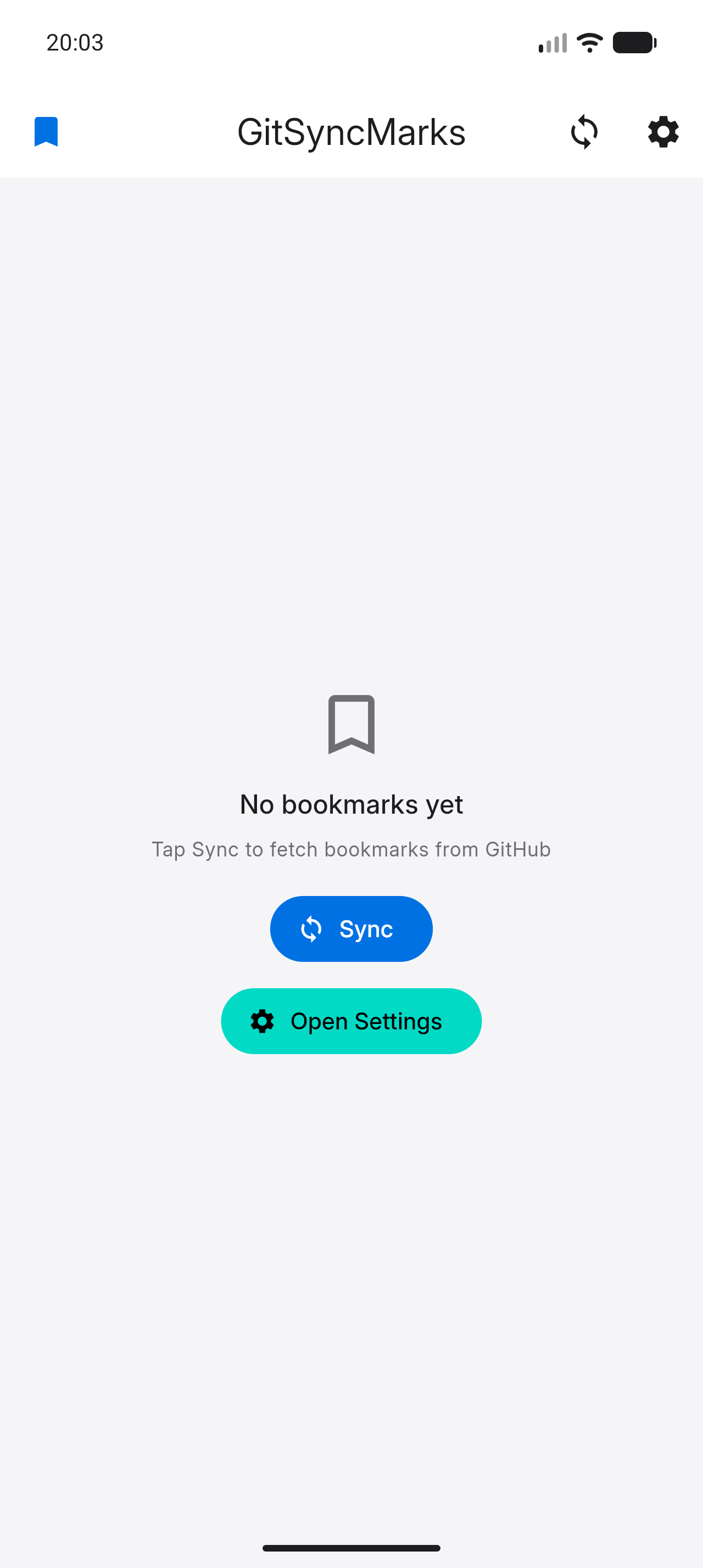
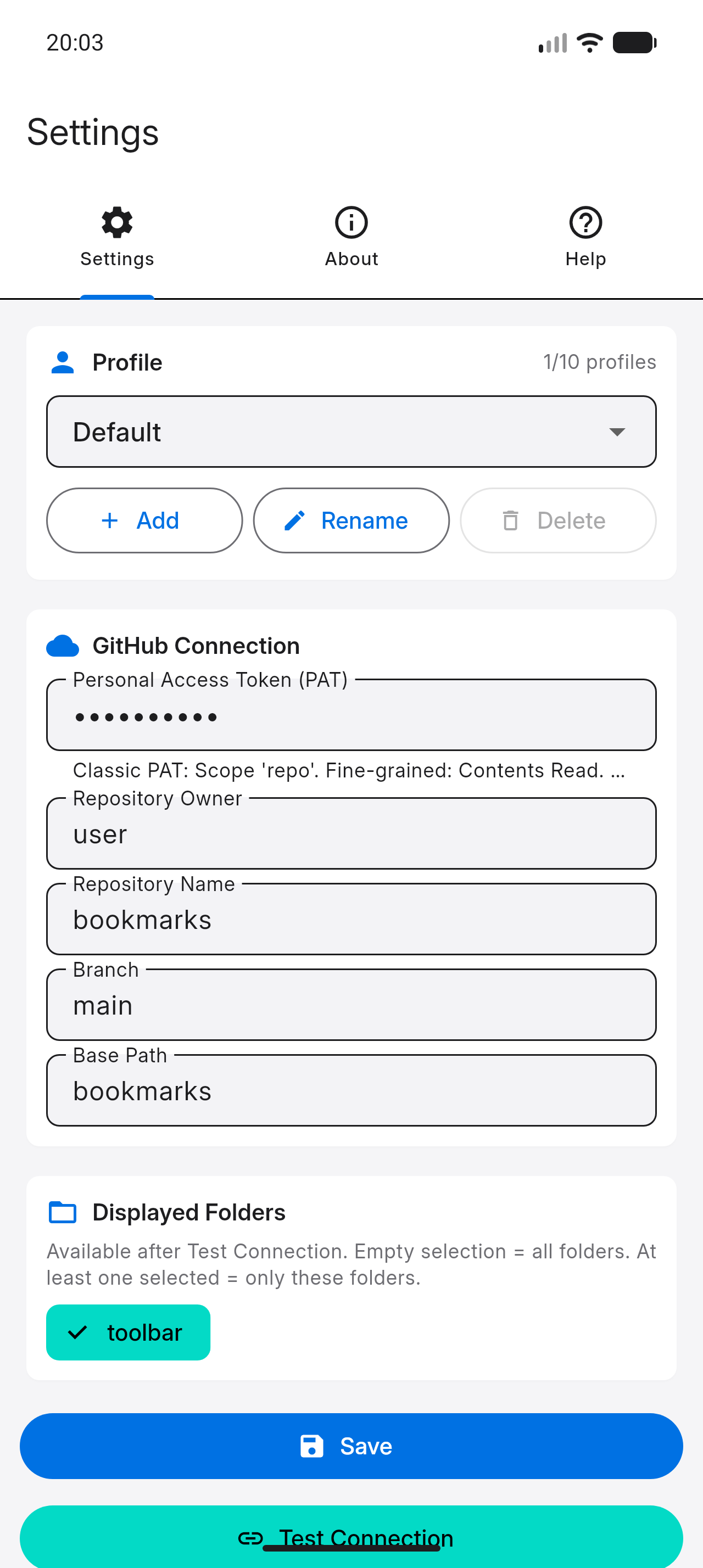
repo scopemain) and Base Path (default bookmarks)